
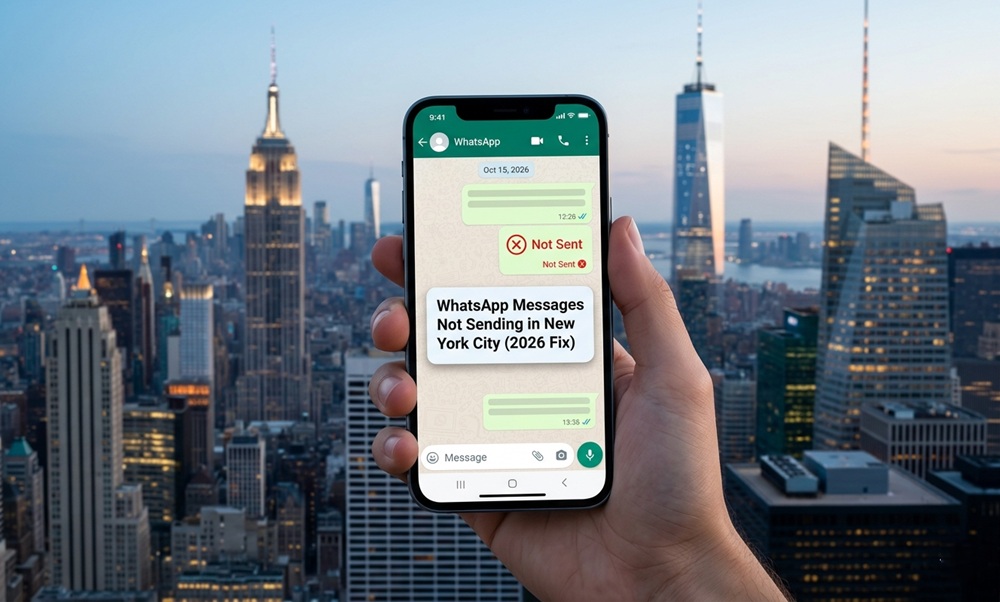

If you’ve ever stood on a subway platform in Manhattan watching that single gray tick stubbornly refuse to turn blue — you know the frustration. WhatsApp messages not sending in New York City is a surprisingly common problem, even in 2026 when you’d expect a global tech capital to have flawless connectivity.
The good news? Most of these issues are fixable in under five minutes. Let’s break down exactly why it happens and how to actually solve it.
Why WhatsApp Messages Fail to Send in New York City
New York’s density is part of the problem. Millions of people crammed into a few square miles means cell towers are constantly overloaded — especially during rush hour, major events at Madison Square Garden, or New Year’s Eve in Times Square.
But network congestion isn’t the only culprit.
Common Causes of WhatsApp Sending Failures in NYC
- Underground subway dead zones — NYC’s MTA tunnel coverage is still patchy despite ongoing upgrades
- Wi-Fi calling conflicts — switching between cell data and Wi-Fi can interrupt active message threads
- VPN interference — many NYC professionals use VPNs that can throttle or block WhatsApp traffic
- Outdated app version — WhatsApp pushes security updates frequently; an old version may lose server compatibility
- Background app restrictions — iOS and Android both aggressively limit background data in battery-saving mode
- Full device storage — WhatsApp can’t cache or send media if your phone storage is under 1 GB free
Step-by-Step Fix: WhatsApp Not Sending Messages in NYC
Follow these steps in order — most users solve the problem by Step 3.
- Check your internet connection first. Open a browser and load any website. If it’s slow or fails, the problem is your connection, not WhatsApp.
- Toggle Airplane Mode on and off. Wait 10 seconds. This forces your phone to reconnect to the nearest cell tower.
- Switch between mobile data and Wi-Fi. If you’re on Wi-Fi, turn it off and retry on cellular. NYC coffee shops often have congested routers.
- Force-close and reopen WhatsApp. Don’t just minimize — fully close the app.
- Update WhatsApp. Head to the App Store or Google Play and check for pending updates.
- Clear WhatsApp cache (Android only). Go to Settings → Apps → WhatsApp → Storage → Clear Cache.
- Disable VPN temporarily. If you’re using a VPN for work, pause it and try resending.
- Check WhatsApp’s server status. Visit downdetector.com — sometimes the issue is on Meta’s end, not yours.
NYC-Specific Problem: The Subway and Tunnel Dead Zones
The MTA has been rolling out cellular coverage in underground stations, but as of 2026, several deep tunnel sections between stations still have zero signal. If your message shows one gray tick and you were recently underground, it’s almost certainly a coverage gap — not a bug.
What to do: Once you’re back above ground or near a station with coverage, WhatsApp will automatically retry pending messages. You don’t need to delete and resend them.
Comparison: WhatsApp Sending Issues by Cause
| Cause | How to Identify | Fix |
|---|---|---|
| No internet connection | Browser also fails | Switch to data or better Wi-Fi |
| App outdated | Message queues but never sends | Update via App Store/Play |
| VPN active | Works after disabling VPN | Temporarily pause VPN |
| Server outage | Affects all users citywide | Wait for Meta to resolve |
| Underground/dead zone | Happened during subway ride | Messages auto-send above ground |
| Storage full | Media messages fail first | Free up 2–3 GB of storage |
Pro Tips From NYC Power Users
- Use WhatsApp Web as a backup. If your phone can’t send, open web.whatsapp.com on a laptop connected to office Wi-Fi. It works independently of your phone’s signal.
- Enable Wi-Fi Calling on your carrier. T-Mobile, Verizon, and AT&T all support Wi-Fi calling in NYC — this helps in signal-weak buildings.
- Don’t send large videos during peak hours. Between 8–9 AM and 5–7 PM, NYC networks are most congested. Compress videos before sending or schedule them for off-peak.
- Check your Date & Time settings. WhatsApp requires accurate system time to authenticate with its servers. If your clock is wrong, messages won’t send.
Common Mistakes to Avoid
- Deleting and retyping the same message repeatedly — queued messages will send automatically once connection is restored
- Reinstalling WhatsApp without a backup — you’ll lose your local chat history if you haven’t backed up to Google Drive or iCloud
- Ignoring storage warnings — media-heavy chats in NYC group threads can fill storage fast
- Assuming it’s always a WhatsApp bug — in most NYC cases, it’s a connectivity issue
FAQs: WhatsApp Not Sending in New York City
Q: Why does WhatsApp work on Wi-Fi but not on data in NYC? Your cellular plan may have hit its data cap, or you might be in a carrier dead zone. Try toggling data off and back on to refresh the connection.
Q: Why do my WhatsApp messages show one gray tick in NYC? One gray tick means the message hasn’t reached WhatsApp’s servers yet — your phone has no active internet connection at that moment.
Q: Does WhatsApp work on the NYC subway? In above-ground sections and stations with MTA Wi-Fi, yes. Deep underground between stations, typically no — coverage remains inconsistent as of 2026.
Q: Can too many people using WhatsApp at once cause sending failures? Yes. During major NYC events like the NYC Marathon or New Year’s Eve, local towers get overwhelmed. This is called network congestion and is temporary.
Q: Should I switch to a different messaging app in NYC? Most fixes above apply to iMessage and Telegram too. The issue is usually network-based, not app-specific.
Conclusion
WhatsApp messages not sending in New York City almost always comes down to three things: a spotty connection, an outdated app, or a temporary server hiccup. Start with the basics — toggle Airplane Mode, check your connection, and update the app. If you’re a frequent subway commuter, know that underground dead zones are normal and your queued messages will send the moment you resurface.
For persistent issues, switching to WhatsApp Web on a stable Wi-Fi connection is the fastest workaround while you troubleshoot your phone.


Leave a Comment